Free, beta, runs in your browser
Deste Edit your PDFs in the browser.
They never leave your device.
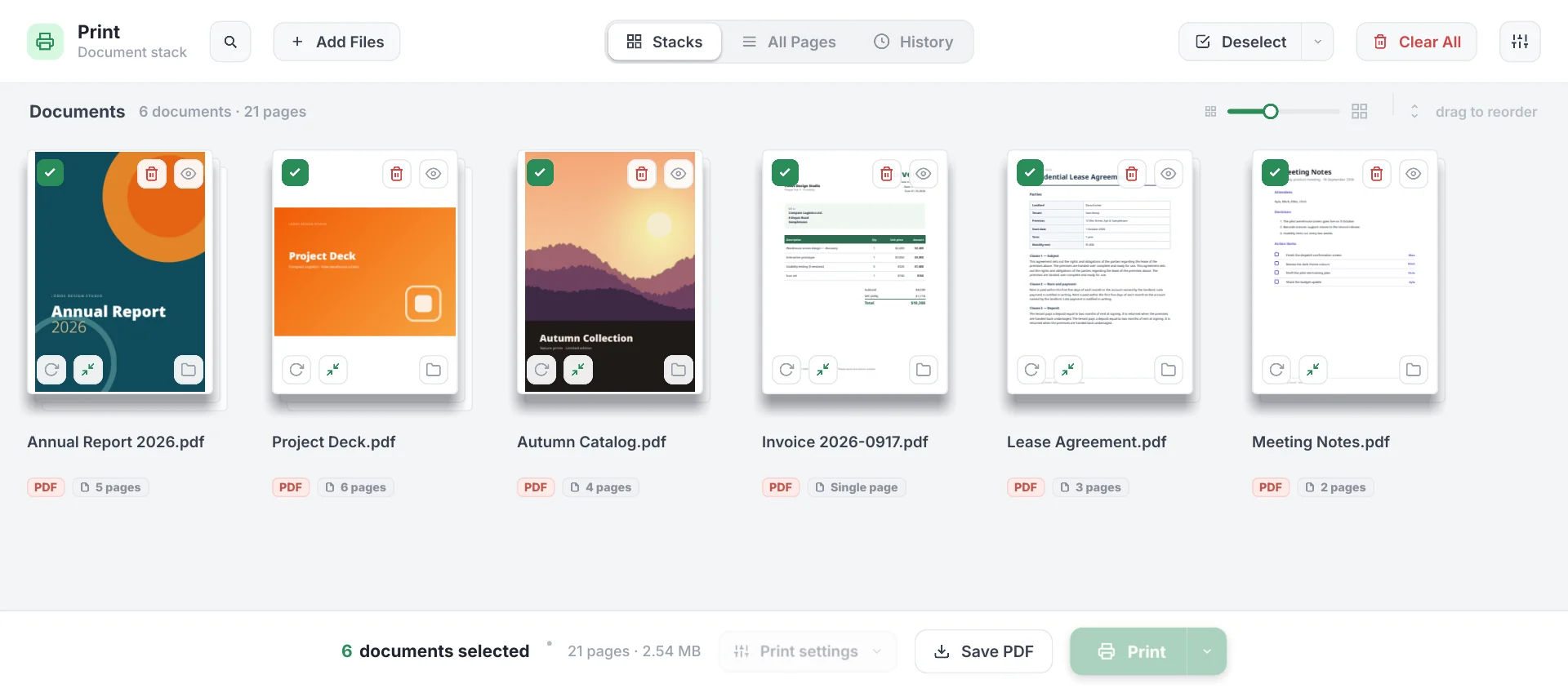
Deste merges PDFs and images, removes, rotates and reorders pages, and compresses scanned documents. It opens like a website but works like an app: everything happens inside your browser, on your own processor. No document is uploaded to a server; no install, no account, no ads.
What it does
Merge, trim, reorder, compress
Putting a few PDFs into one file, fitting a scan into an email or pulling two pages out of a contract shouldn’t need an install, an account or handing your documents to someone else’s server.
- Open PDFs and images
- PDF, PNG, JPG, WebP, BMP, GIF and AVIF. Images become PDF pages; add several files at once or drag them onto the window.
- Merge
- The selected documents become a single PDF in the order on screen; untick the ones you don’t want.
- Remove, rotate
- Untick a page you don’t want; rotate one page or a whole document by 90°.
- Reorder
- Drag documents and pages into place. On a phone, hold a page for a moment to start dragging.
- Move between documents
- Drag a page onto another document to move or copy it. Split a document in two at any page.
- Compress
- Five levels. Scanned text documents often shrink to under a tenth of their size and stay searchable.
- Pick up where you left off
- Close the tab and come back: open documents, their order, selection and edits are still there.
Views
Document by document, or page by page
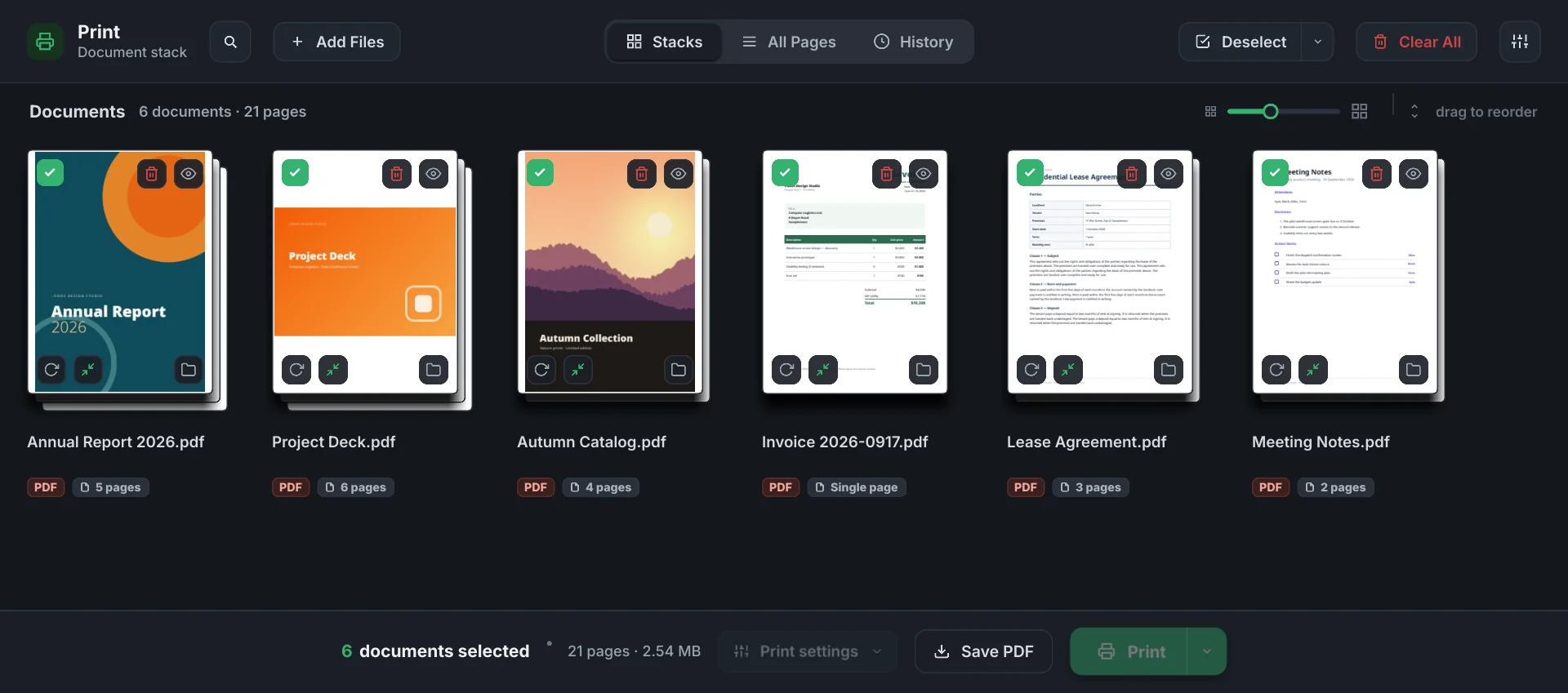
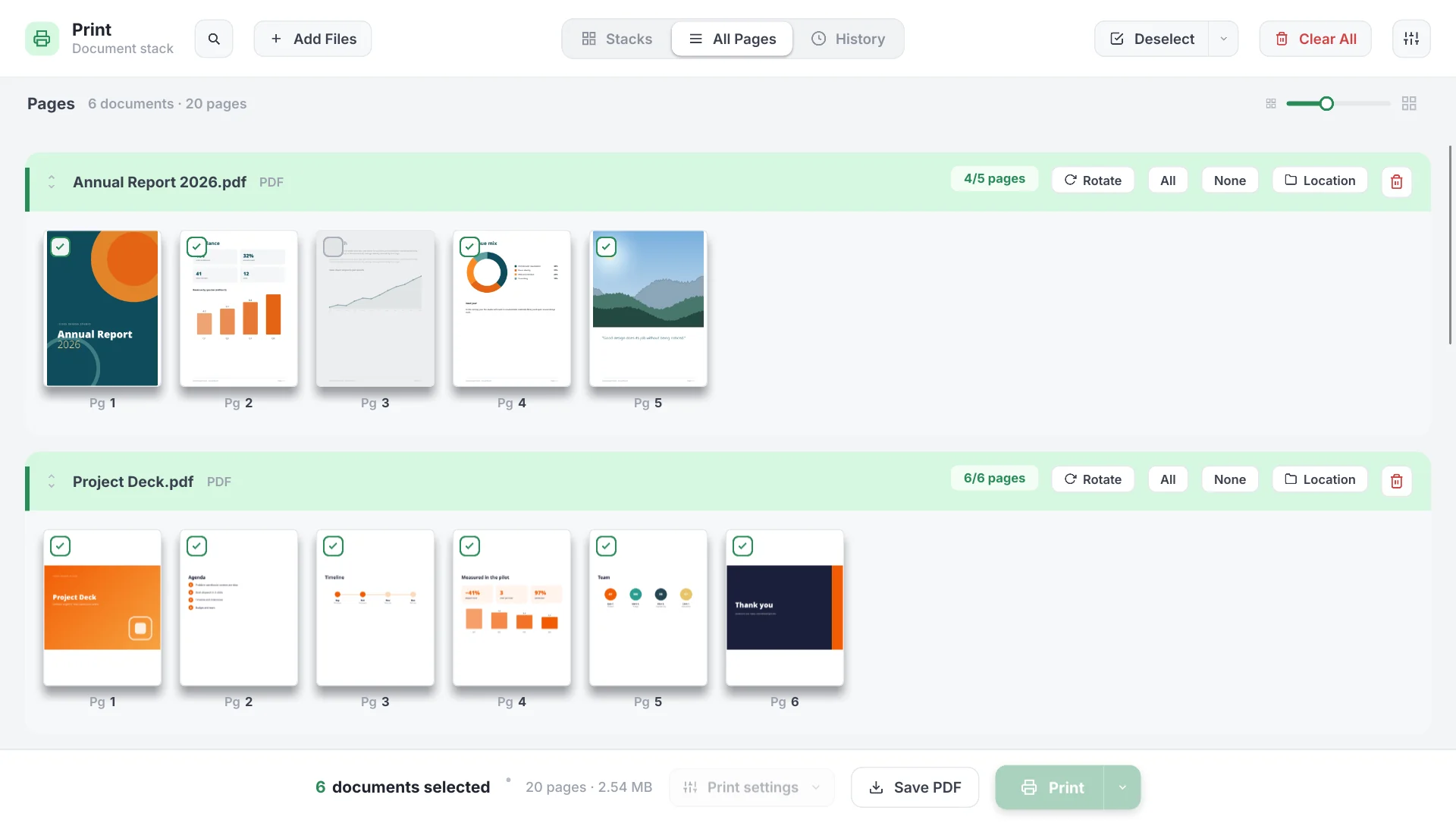
The same documents, three ways: Stacks shows them as cards, All Pages shows every page, History shows what you opened in recent days. A change made in one shows up in the others.
All Pages
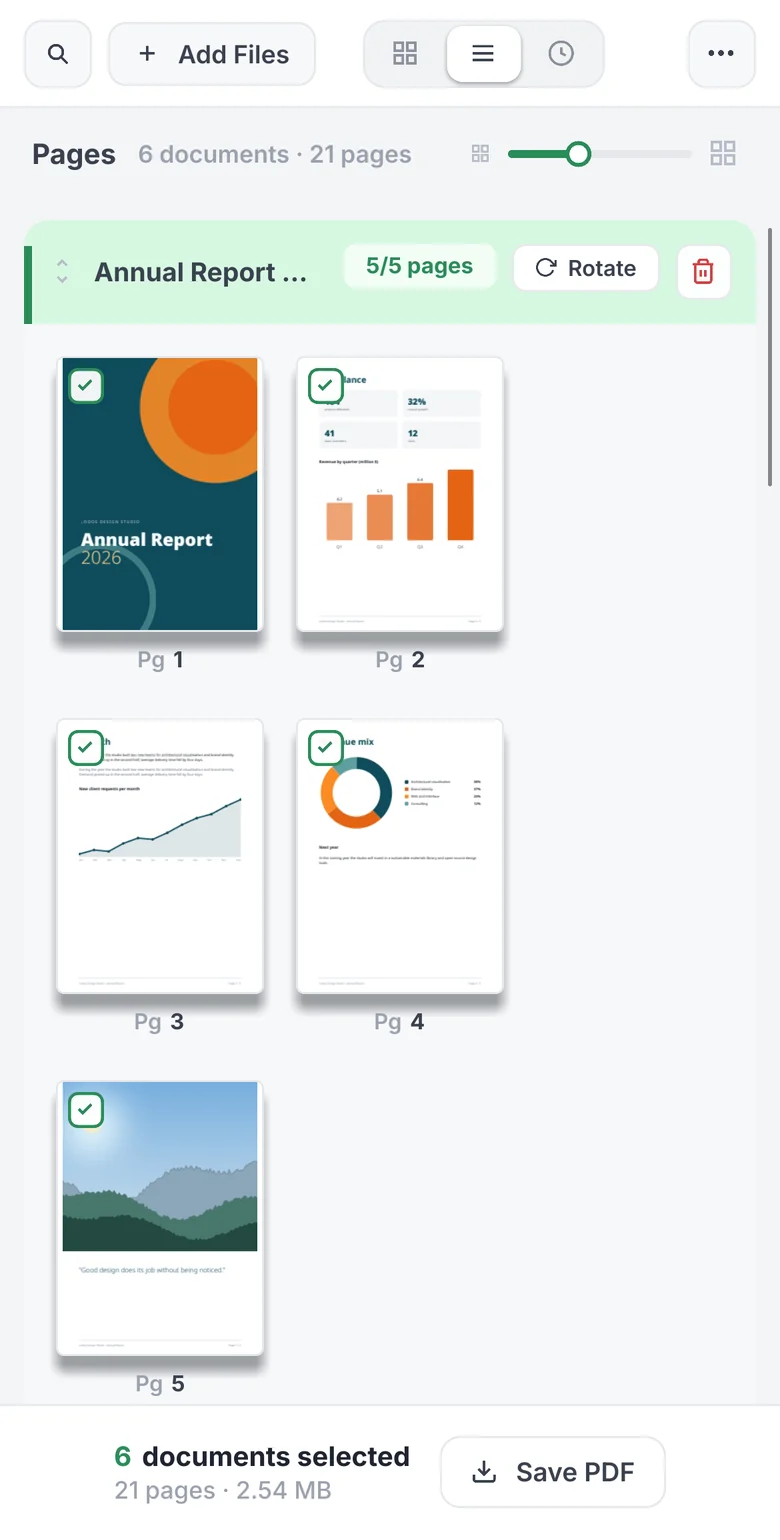
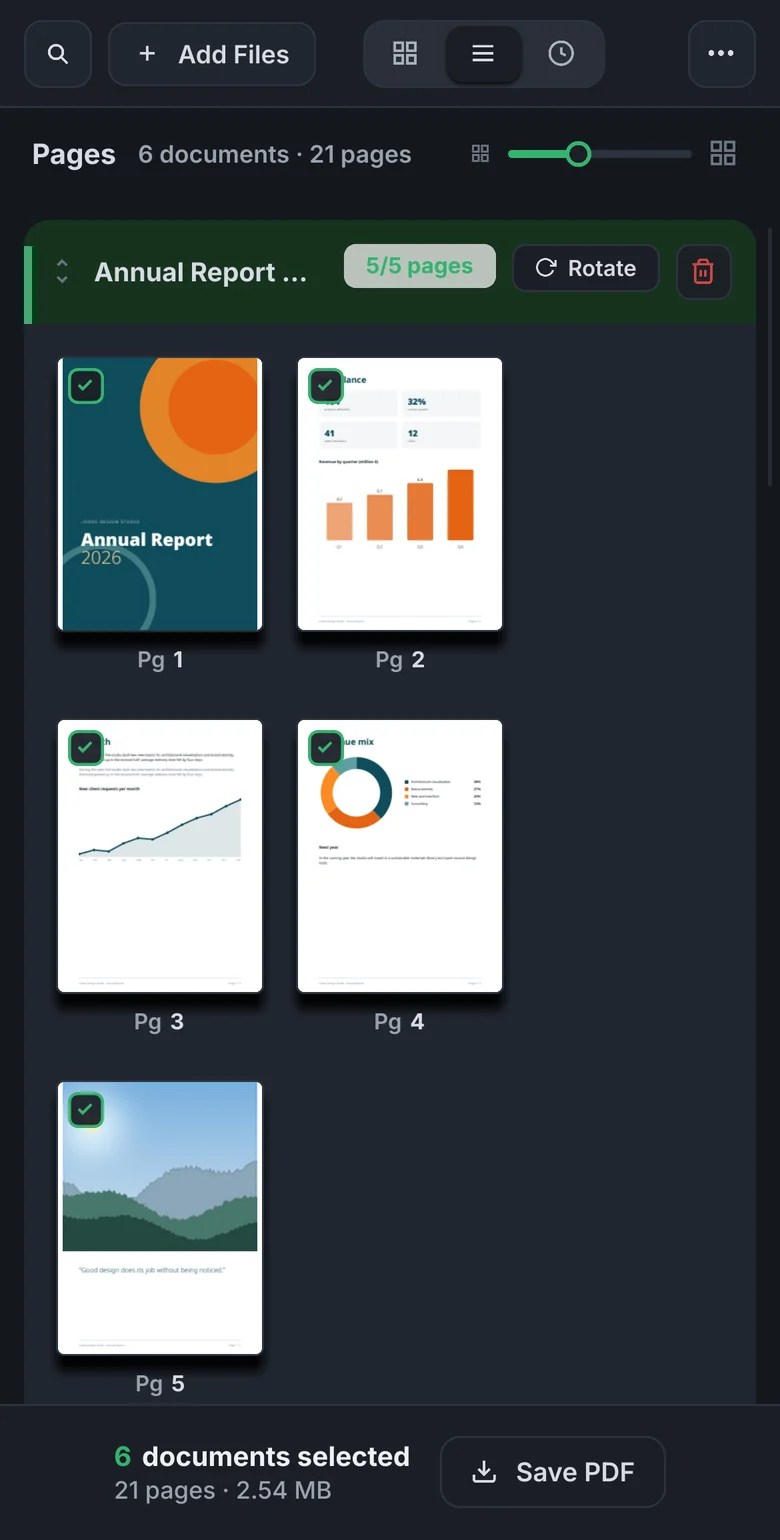
Every page of every document in one grid
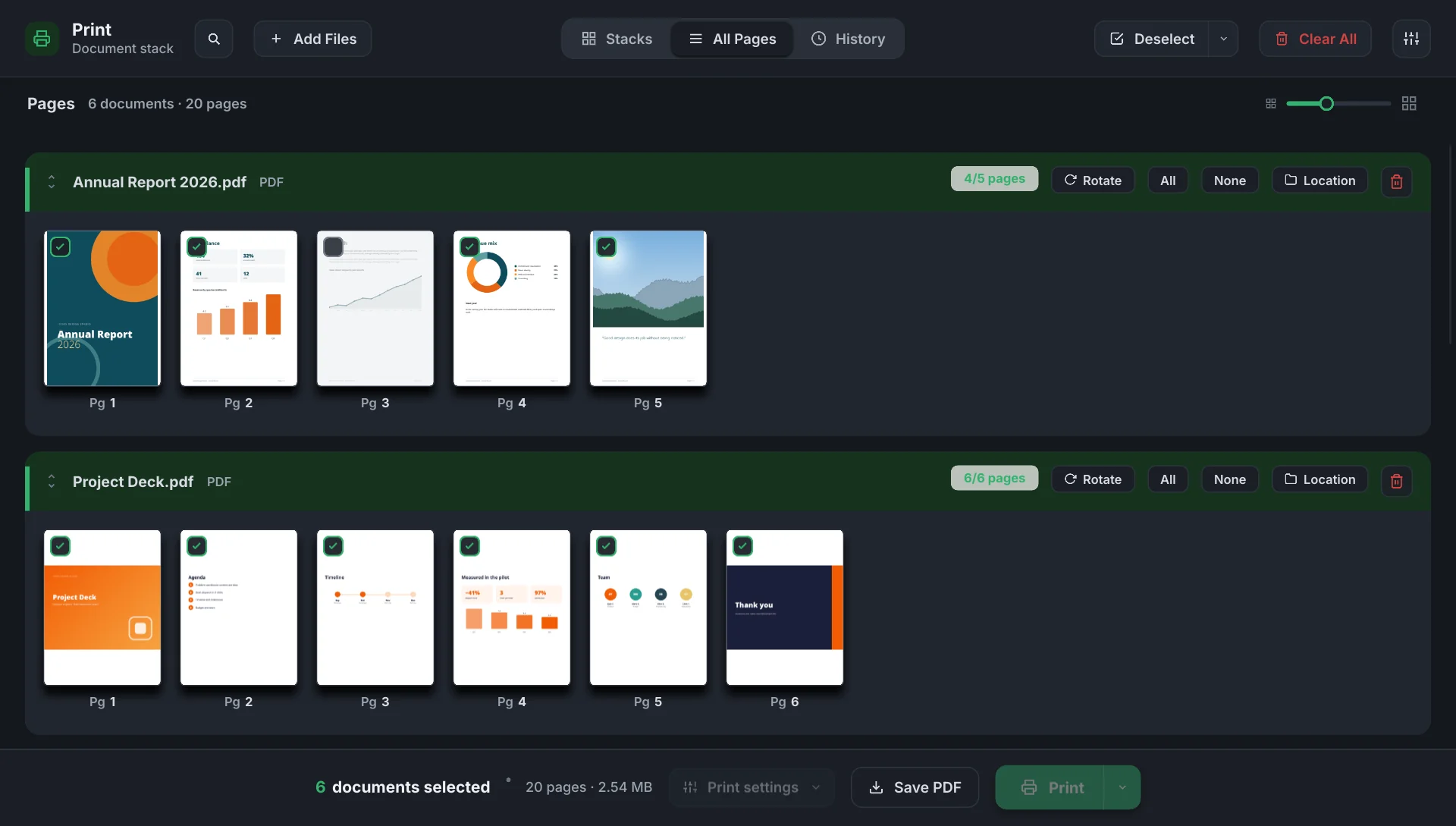
Untick a page and it drops out of the output, shown faded; one click brings it back. All and None in the header select every page of a document, Rotate turns them all. Drop a page on another document’s row and Deste asks whether to move or copy it; a moved page carries a badge.
Preview
See pages large, fix them there
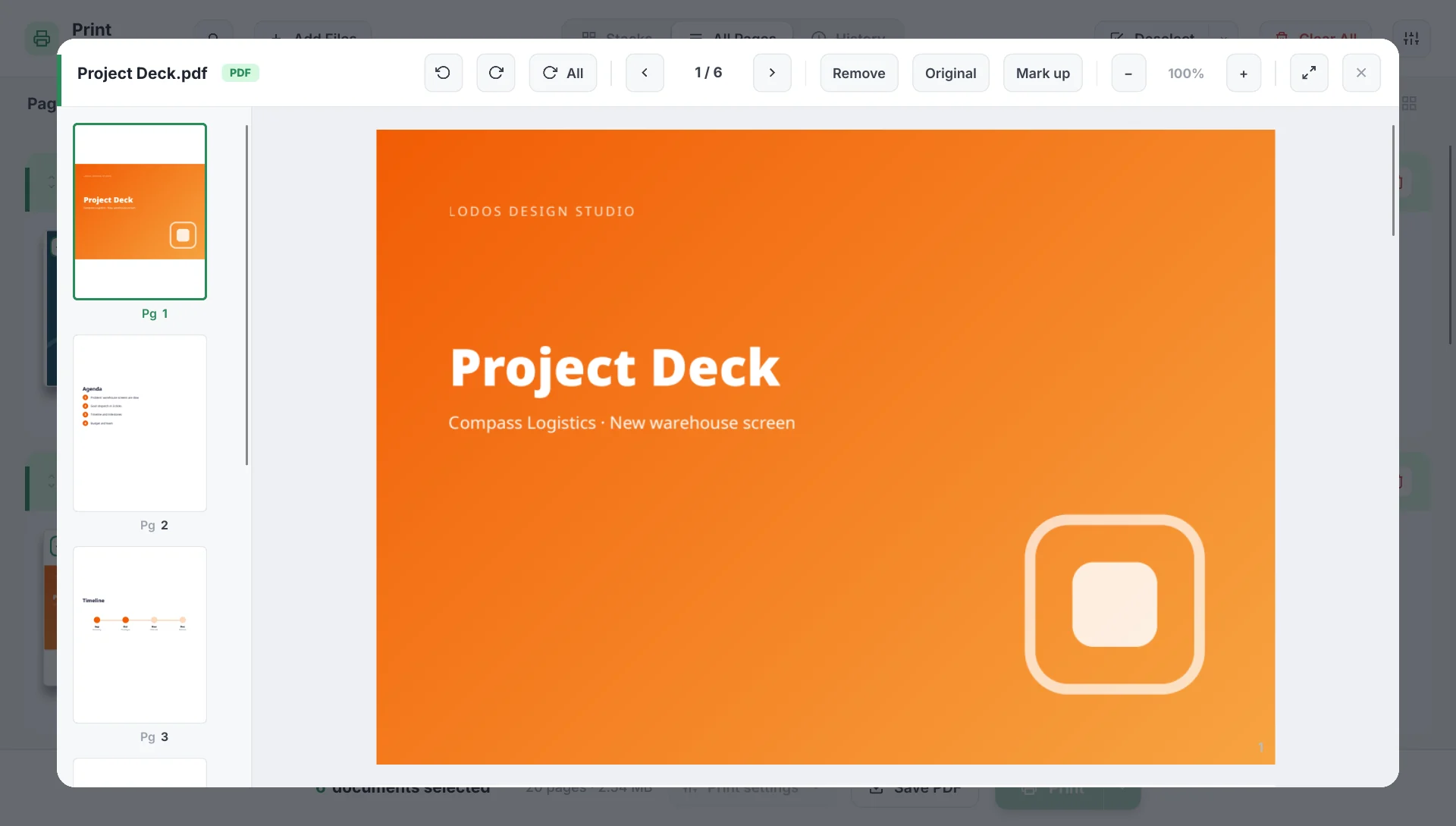
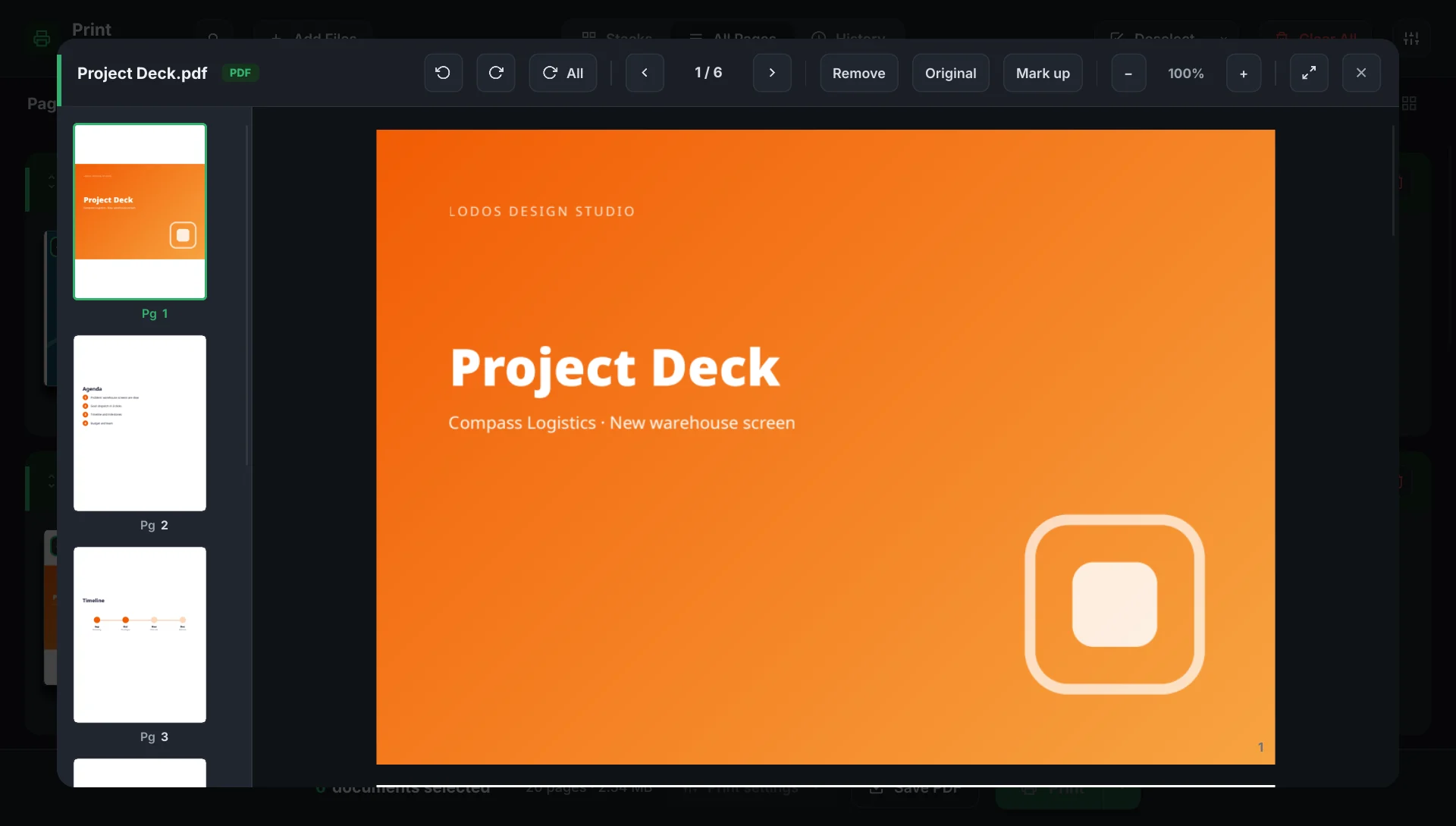
Click a page and the document opens large: a thumbnail rail on the left, rotate, remove, zoom and full screen on top. Split cuts the document in two at that page. Only the page on screen and its neighbours are drawn, so a hundred-page document opens without waiting.
Compression
Compression made for scans
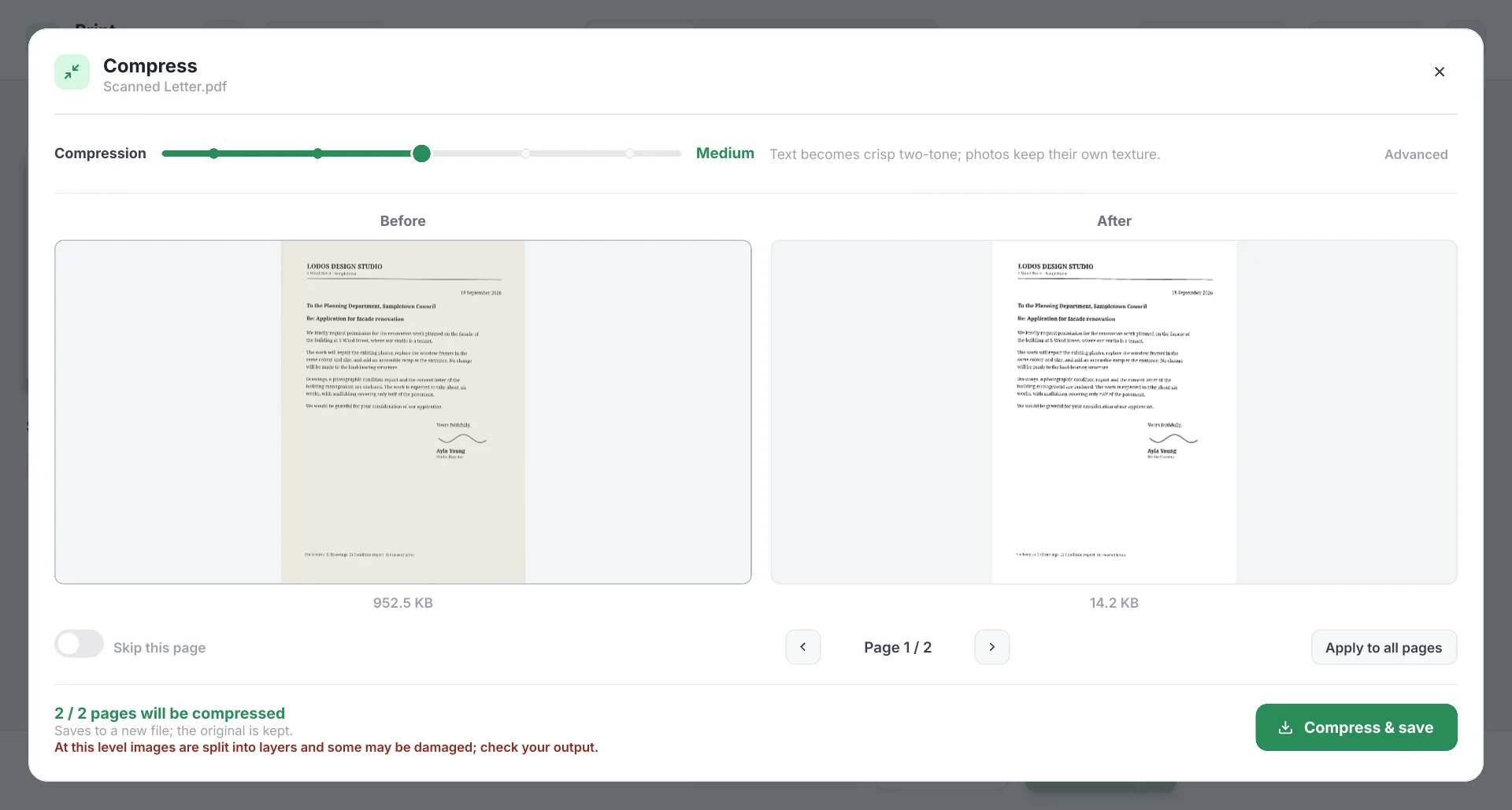
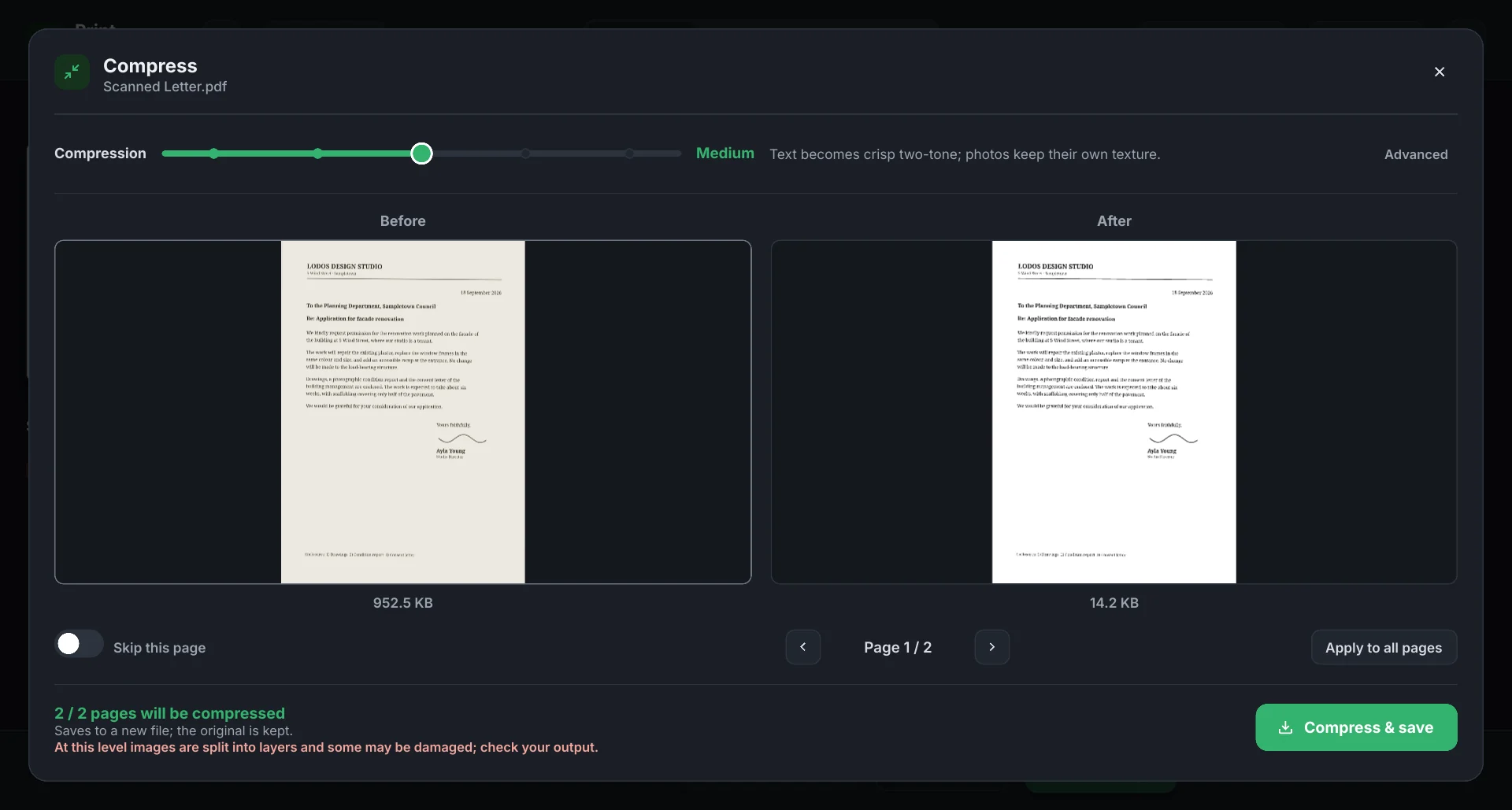
A page from a scanner or a phone camera is a photograph of hundreds of kilobytes. Deste separates the text from the paper, keeping the text in a crisp two-tone layer and photos in a layer of their own. In the example below, the first page of a scanned letter goes from 952 KB to 14 KB. Before saving you see every page before and after, with its size.
Five levels
- High quality
- Leaves the source almost untouched; the file shrinks little.
- Light
- Images re-encoded at 150 dpi, text left alone.
- Medium
- Text becomes crisp two-tone, photos keep their own texture. Default.
- Strong
- Photos compressed too; text stays sharp and searchable.
- Extreme
- Every setting at its limit for tough scans; stamps and signatures are kept.
The level can change page by page, and a page can be skipped. Under Advanced you’ll find grayscale, fine-text protection and removing the invisible text layer. The result is always saved as a new file; your original is not touched. The gain depends on the document: a PDF already full of compressed photos shrinks little.
Privacy
Your documents never leave your device
A website is assumed to upload the file you give it. Deste doesn’t — and it says so the first time you open it.
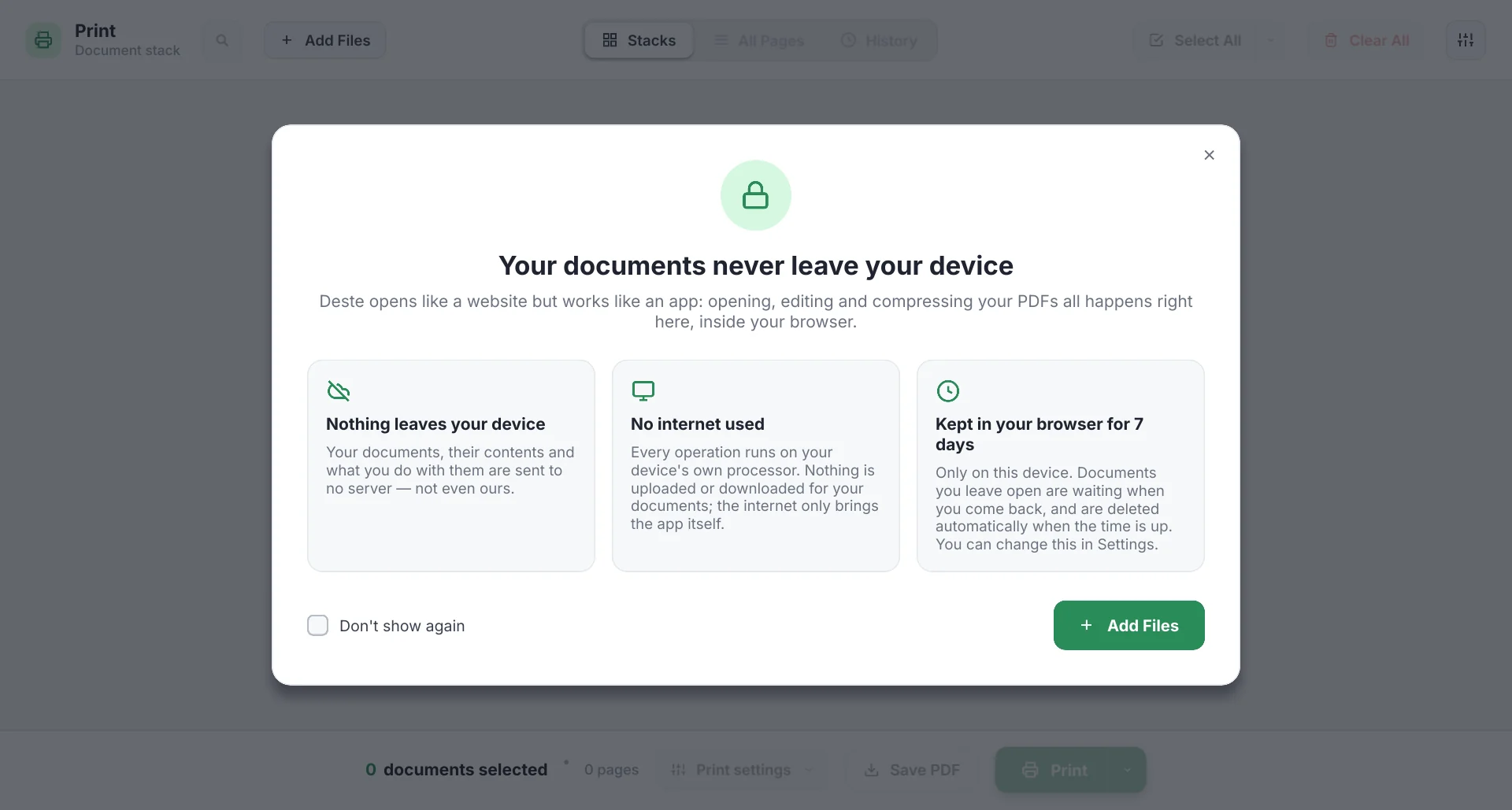
How
What your browser downloads when you open the site is the app itself: the interface, the PDF engine and the compression engine, written in Rust and compiled to WebAssembly. Opening a document, drawing pages, merging and compressing all run in that code, on your processor. Not a single request goes out for your document; once the app has loaded, working on documents uses no internet.
What is kept
So that you can reopen them from History and pick up where you left off after closing the tab, opened documents are kept on this device only, in the storage the browser gives this site, and deleted automatically when the time is up (7 days by default). In Settings you can choose 1 or 30 days, or turn history off; then nothing is kept and documents go when the tab closes.
What the server sees
The app’s files are served through Cloudflare. To deliver the page, Cloudflare processes your IP address and browser details and logs which app file was requested and when. Your documents are not in those requests, because they are never sent. There is no analytics, tracking or ad code. Details (Turkish): terms of use.
On your phone
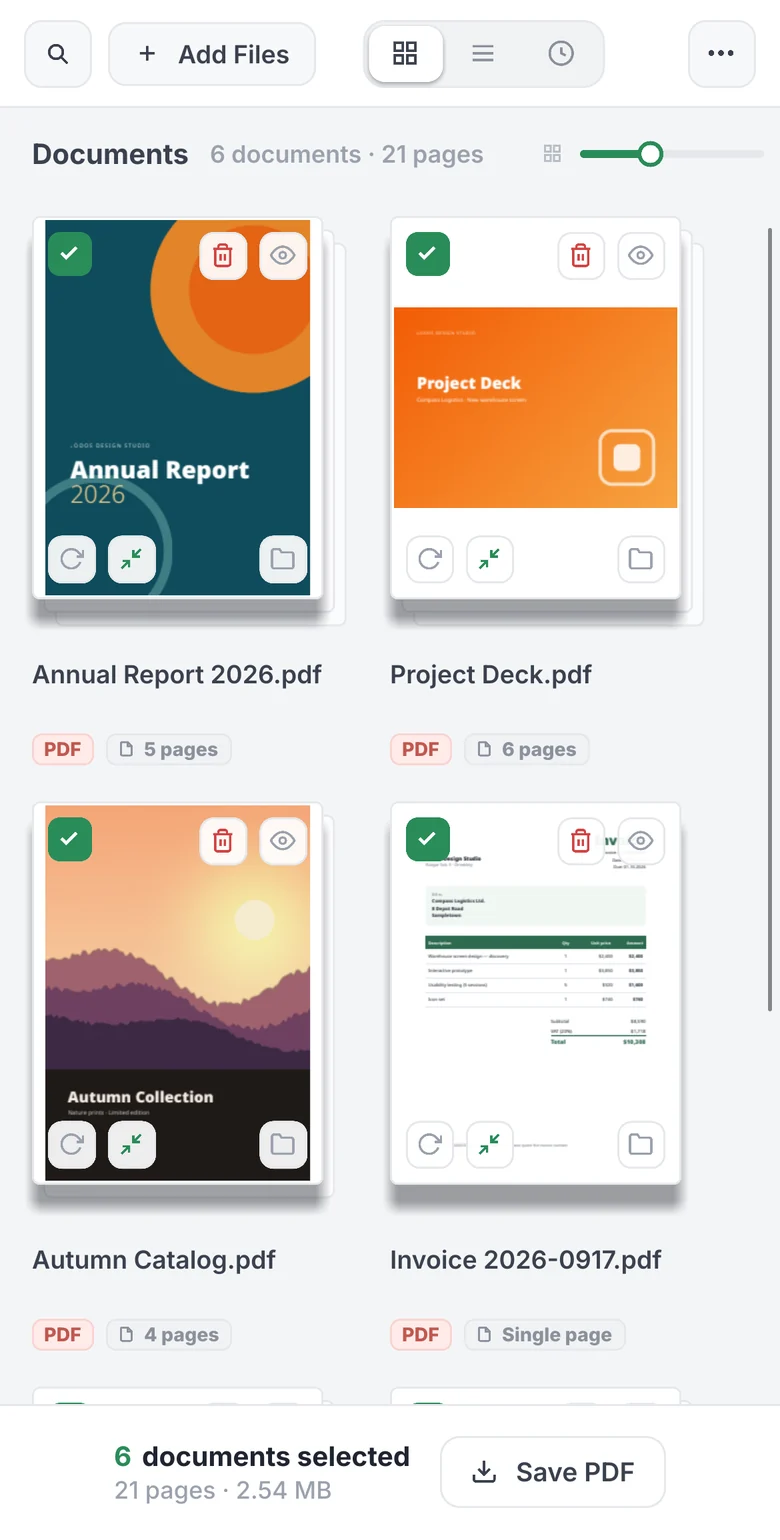
The same tool, in your pocket
It opens in the phone’s browser, nothing to install. Lists scroll with your finger; hold a page or a document for half a second, then drag it into place. Add Files opens the phone’s file picker.
Desktop · coming
The desktop app: a printer that shows you first
A desktop version of Deste is being built for Windows and Linux; it can’t be downloaded yet. It does everything the web version does, and adds itself to the system as a printer.
What’s different
It captures from any app. Choose Print → Deste in Word, a browser or any other program and the job lands in Deste’s stack instead of on paper. Collect output from different programs there, trim it, print it in one go.
It prints to your real printer. Copies, duplex, three levels of toner saving and black-and-white. Without filters pages go out as vectors, so text stays sharp. On Windows it uses the system’s printing stack, on Linux CUPS.
It waits in the tray. It can start quietly at login; captured documents and history stay on disk, on your machine only.
Details: Capturing print jobs · Print options.
Limits
Good to know
Beta
This is a beta. Try important documents on copies and check the PDF you get. Whether form fields and digital signatures are preserved has not been verified yet; password-protected PDFs can’t be opened for now.
Browser. Needs WebAssembly and WebGL. It runs in Chromium-based browsers such as Chrome and Edge, on desktop and Android; Firefox and Safari (iPhone, iPad) haven’t been tested enough yet.
Size. 250 MB per file, 400 MB in total for documents open at once. The limit keeps clear of the browser’s memory ceiling.
Use. Free for personal, non-commercial use. For commercial use and feedback: [email protected].