PDF Compression
Shrink scanned and photo-heavy PDFs: five levels, per-page settings, a before/after preview and advanced options.
Deste compresses PDFs inside your browser; the document never goes to a server. Its real strength is scanned documents: every page that comes from a scanner or a phone camera is really a large photo. Deste separates the text from the paper, keeping the text in a sharp two-tone layer and the photos in a separate layer. If there’s a text layer, the document stays searchable.
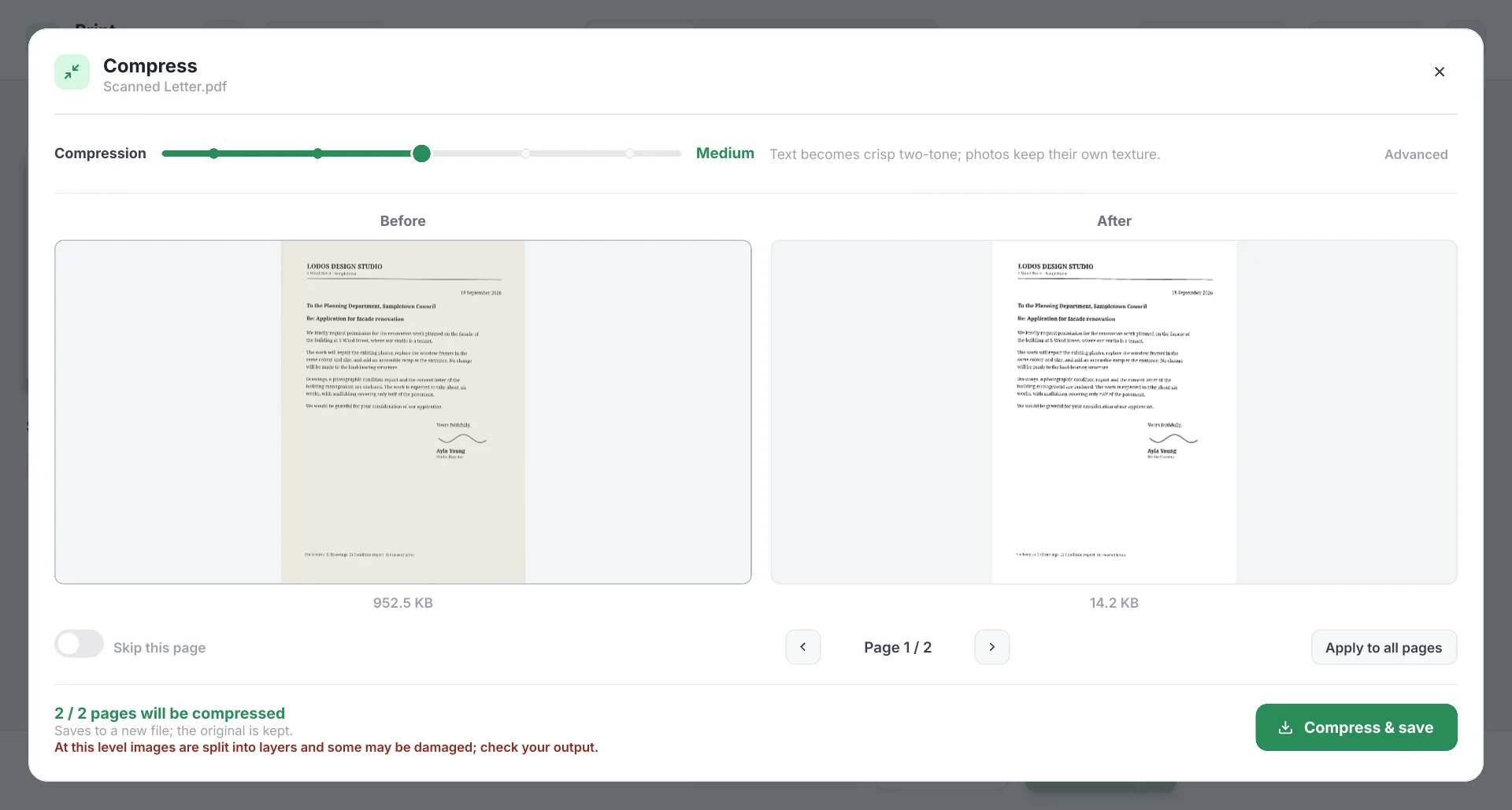
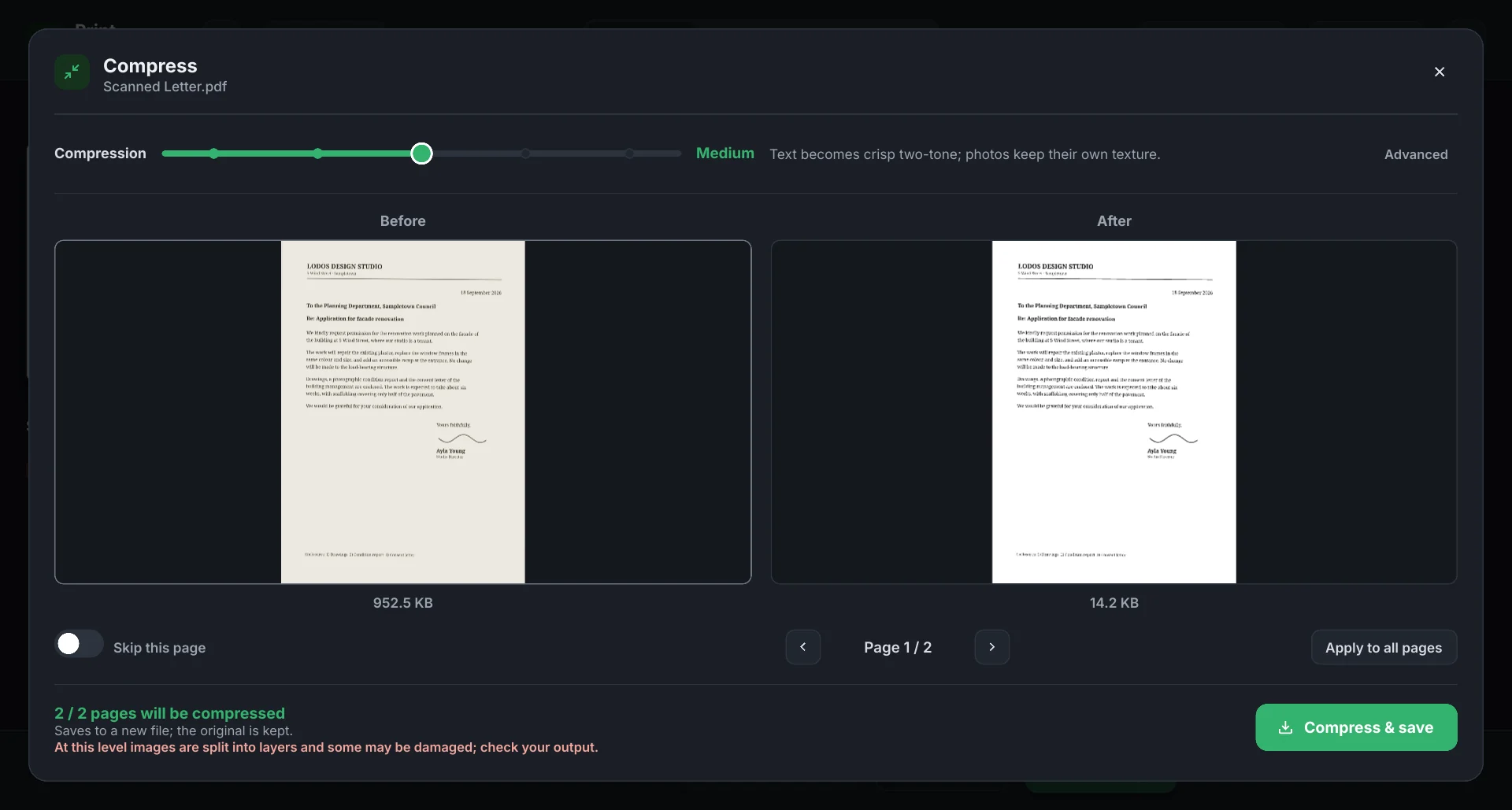
In the example above, the first page of a scanned letter goes from 952 KB to 14 KB. The gain depends on the document: in a catalog full of photos that are already compressed, the difference may be small.
Where to open it
- A single document: the compress icon on its card. Only that document is compressed and saved.
- The whole selection: Save PDF → Compress while saving on. Everything selected is merged into one PDF and compressed.
Levels
The slider has five levels; what the selected level does is shown next to it.
| Level | What it does |
|---|---|
| High quality | Barely touches the source; the file shrinks a little. |
| Light | Images are re-encoded at 150 dpi; text is left alone. |
| Medium (default) | Text is separated into sharp two-tone; photos keep their own texture. The everyday balance. |
| Strong | Photos are compressed hard too; text stays sharp and searchable. |
| Extreme | Every setting at its limit, for difficult scans; stamps and signatures are still preserved. |
At Medium and above, images are split into layers, so some pages may show damage; the window reminds you of this in red. Check the preview before saving.
Before and after
The middle of the window shows the Before and After versions of the selected page, with their sizes below them. Move between pages with ‹ Page 1 / 2 ›.
- The level can change from page to page. Moving the slider while you’re on a page affects only that page; Apply to all pages applies that setting to all of them.
- Skip this page leaves the page as it is, without compressing it — for a signed page or a delicate drawing.
- The bottom line sums up how many pages will be compressed.
Advanced
Advanced, to the right of the slider, opens these options:
- Grayscale — color pages are converted to gray.
- Fine-text protection — pages with very small type get a second, higher-resolution pass. Turning it off makes the file a little smaller. (Medium and above.)
- Dictionary — stores similar letter shapes once; the content is preserved exactly, but very old viewers may not support it. Experimental. (Medium and above.)
- Remove text layer — drops the invisible OCR layer from a scanned document. The file gets smaller, but the document can no longer be searched.
Saving
Compress & save creates a new PDF and downloads it; your original document doesn’t change. Compression runs entirely on your device; for a large document this can take a while, depending on your processor and the document’s page count. The progress window stays open in the meantime.
Tips
- For text-heavy scans, Medium is usually enough; if the file doesn’t fit an email size limit, try Strong.
- For images that are already compressed, like a photo album or a catalog, start with High quality or Light.
- On pages with signatures and stamps, zoom in on the result in the preview and check it; skip that page if needed.